How to Choose a Microsoft 365 Timesheet Solution for Project Teams
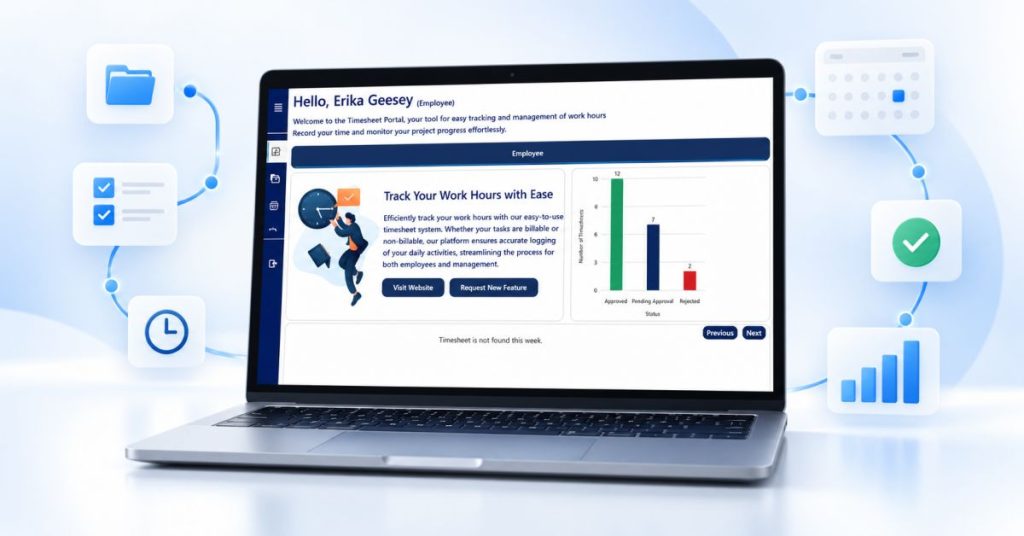
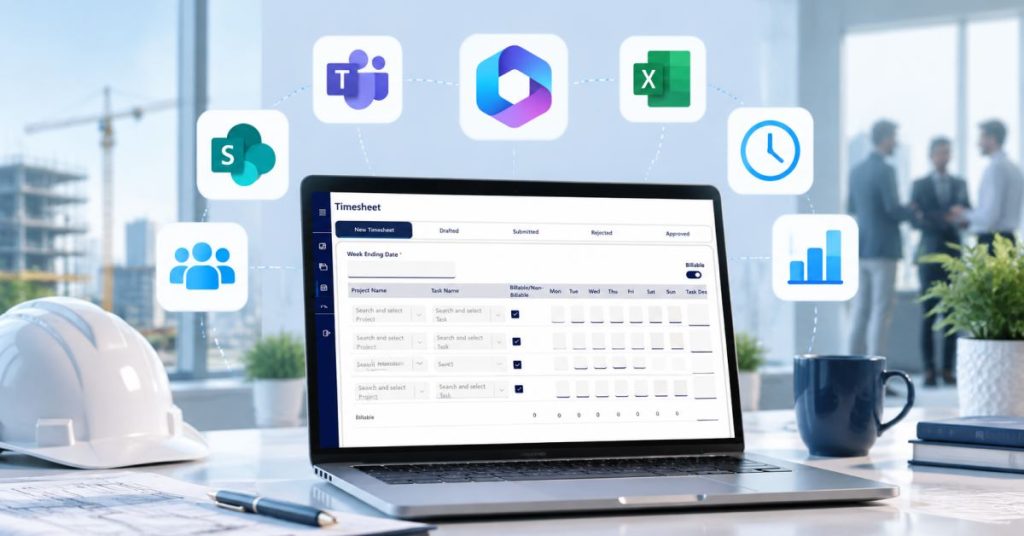
How to Choose a Microsoft 365 Timesheet Solution for Project Teams If your organization already uses Microsoft 365, choosing a timesheet solution may seem straightforward. Employees need to enter their hours. Managers need to approve them. Leadership needs reports. But once a project team grows, the requirements become more complicated. You may need to track hours against projects and tasks, identify missing timesheets, manage approvals, separate billable and non-billable time, and connect the resulting information to reporting tools such as Power BI. So the question shouldn’t simply be: “Does this software have a timesheet?” A better question is: “Can this solution support our entire project time-tracking workflow?” This guide explains what project-based organizations should evaluate when choosing Microsoft 365 timesheet software. What Is Microsoft 365 Timesheet Software? Microsoft 365 timesheet software helps organizations collect and manage employee time information within the Microsoft ecosystem. For project-based organizations, the solution should do more than record total working hours. It should help connect: Employee → Project → Task → Hours → Approval → Reporting This creates structured information that can be used beyond the timesheet itself. 1. Start With Project and Task Tracking One of the first questions to ask is: Can employees record time against the work they actually performed? A project-based organization may need to track: Projects Tasks Employees Dates Hours Billable/non-billable time For example, an employee might record: Project: Office Construction Task: Electrical Installation Hours: 7.5 That is considerably more useful for project reporting than simply recording: Employee: John Hours: 7.5 When evaluating a timesheet solution, make sure the project and task structure matches the way your organization manages work. 2. Evaluate the Employee Timesheet Experience Employees are the people entering the data. If the process is unnecessarily complicated, the quality and consistency of the information can suffer. Look for a timesheet experience that makes it straightforward to: Select projects Select tasks Enter hours Review entries Submit timesheets Check timesheet status The objective should be a process employees can follow consistently without requiring extensive training. 3. Look at the Approval Workflow Recording time is only one part of the process. Many project organizations also need managers to review and approve submitted timesheets. Ask: Who approves the timesheet? Can managers see pending submissions? Can a timesheet be rejected? Can employees resubmit it? Can the organization track approval status? A structured approval workflow can reduce dependence on emails and manual follow-ups. 4. Don’t Forget Missing Timesheets One of the most practical questions for a manager is: Who hasn’t submitted their timesheet yet? A timesheet solution should make this information easy to identify. This matters because project reporting often operates on deadlines. If several employees haven’t submitted their hours, the resulting project report may not provide a complete picture. Missing-timesheet visibility should therefore be considered a core part of the evaluation—not an optional extra. 5. Evaluate the Reporting Capabilities A timesheet application should ultimately help you understand the data being collected. Depending on your requirements, you may need reports showing: Employee hours Project hours Task hours Billable hours Non-billable hours Missing timesheets Approval/rejection status Hours across a selected date range Also consider how users interact with the reports. Can they filter the information by project, employee, manager, status, task, or date? Can they view the information as a grid? Can they use charts when a visual summary is more useful? These details can make a significant difference to day-to-day project management. 6. Consider Power BI Integration If your organization already uses Power BI, this should be part of your evaluation. Timesheet information can become a valuable source of project reporting when it is structured correctly. Power BI can help organizations create dashboards and analyze information across different dimensions. For example: Project effort Employee effort Billable/non-billable hours Time trends Project-level information The key question is: Can the timesheet data become part of the organization’s existing reporting environment? For Microsoft-centric organizations, this can be an important consideration. 7. Check Microsoft 365 and SharePoint Compatibility If your organization already works extensively with Microsoft 365, the timesheet solution should fit into that environment. Look at: SharePoint compatibility Microsoft 365 deployment User access Permissions Data location Existing Microsoft ecosystem workflows A SharePoint-based solution can be particularly relevant for organizations that want their timesheet process to remain within their existing Microsoft 365 environment. 8. Think About Compliance and Timesheet Rules Different organizations have different rules around working hours. Depending on your requirements, you may need to consider: Minimum working hours Maximum working hours Weekend entries Holiday calendars Required timesheet submissions Role-based access A timesheet solution should support the rules that matter to your organization rather than forcing managers to validate everything manually. 9. Consider Reporting Before You Choose the Timesheet This is an important point that is often overlooked. Many organizations start by asking: “What should our employees use to enter time?” Instead, start with: “What information will leadership need at the end of the reporting period?” For example, if leadership needs to know project effort by employee and task, the timesheet process should collect that information from the beginning. This creates a simple principle: Start with the report. Work backward to the data you need. That approach can help prevent organizations from collecting time that cannot later be used effectively. 10. Microsoft 365 Timesheet Software vs. Excel Excel is familiar, flexible, and inexpensive. For small teams with straightforward requirements, it can be a reasonable starting point. But as project complexity increases, organizations may begin to encounter challenges around: Multiple spreadsheet versions Manual consolidation Approval follow-ups Missing entries Reporting preparation Maintaining project/task structures Data consistency A dedicated timesheet application is not automatically better for every organization. The right question is whether your current process can reliably provide the information your project and leadership teams need. What Should a Good Microsoft 365 Timesheet Solution Provide? Before purchasing, create an evaluation checklist. Capability Why It Matters Project tracking Connect hours to projects Task tracking Understand where project effort is spent Timesheet entry Provide structured employee time capture Submission workflow Establish a